Brand and products
Knowledge sources
Adding your own documents to a brand, and what Nomi does with them.
Last updated 13 October 2026

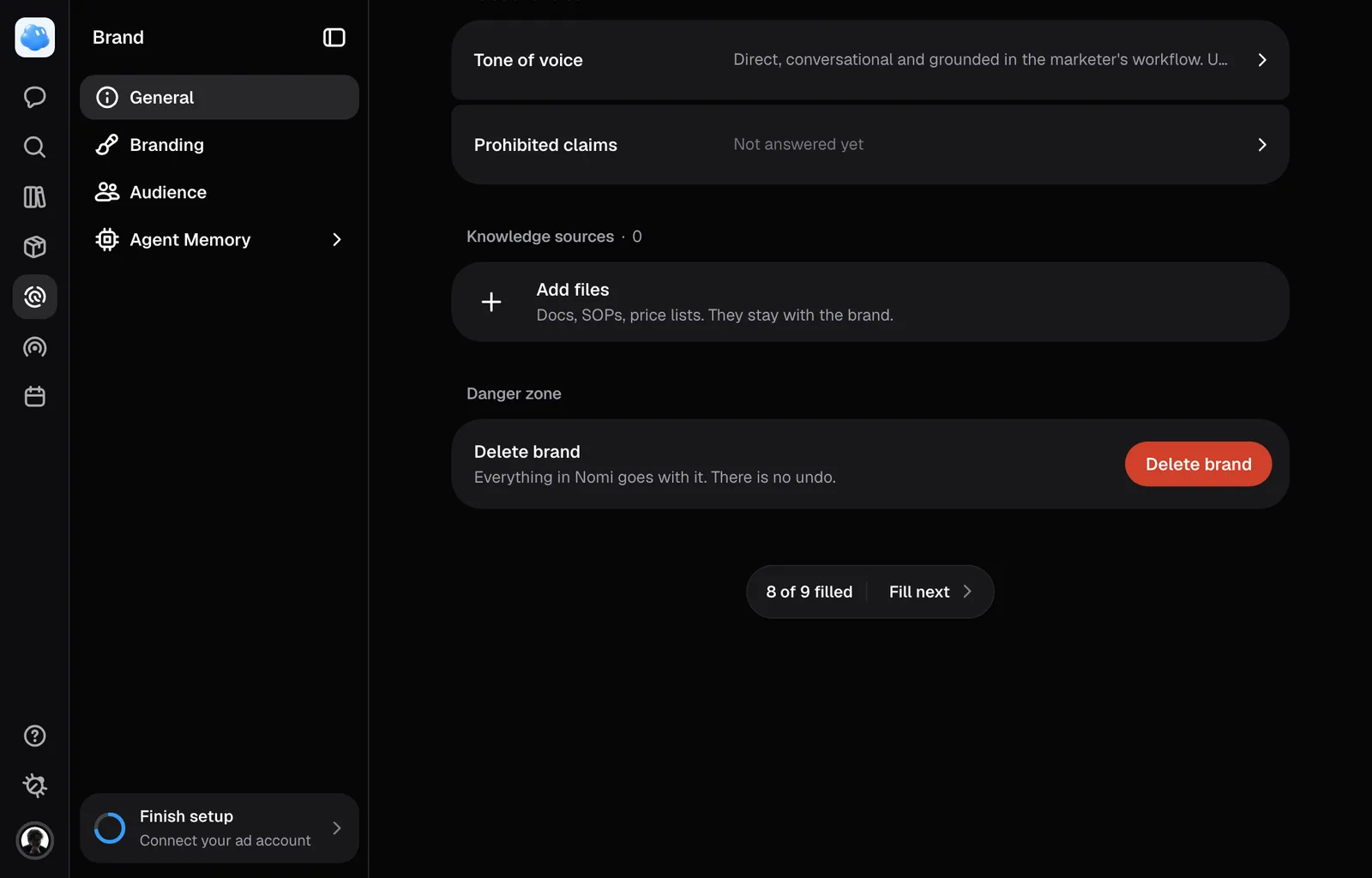
Some of what Nomi should know about your business is already written down somewhere: a price list, a brand book, a note on how you handle returns. Knowledge sources are where those files go, so Nomi can open one mid-conversation instead of guessing.
Where they live
Open Brand in the rail and stay on General in its sidebar. Knowledge sources sits under the fields, one row for each file. Press Add files, the last row, and pick as many as you like at once, or drag them onto the section.
It takes PDF, DOC, DOCX, CSV, XLSX, TXT and MD. Anything else is refused with a line naming the formats it does take, and so is a file over 20 MB. Either refusal names the file, and the rest of the batch stops there.
Files belong to the brand they were added to. Switch brands and you get that brand's list.
This section takes files, not links. A web address is something Nomi reads during brand setup, or opens for itself when you paste it into a conversation.
What Nomi does with them
Plain text, Markdown and CSV are converted the moment they land, and Nomi can read those in a conversation from then on. PDF, DOC, DOCX and XLSX are stored, and reading them is not built yet: they wait in the list for it.
To use one, refer to it in the conversation the way it is named in the list. Nomi opens it and reads what is there, a long document a piece at a time.
What comes back is information about your business, never an order. A sentence inside a document that reads like an instruction to Nomi is treated as text somebody typed into a file.
Nothing a document says becomes a fact about your brand by itself. If a file holds your positioning or your tone, put those into the fields on this same page too, where every ad reads them.
Bringing a brief you already wrote
If you have already explained your business to ChatGPT or Claude, open Settings, then Agent, and find Import from other AI tools. Press Copy the prompt, run it there, and paste the answer back into the field.
It saves the moment you click away, with no button to press, and lands in this list as a source Nomi can read straight away. The same step is offered during brand setup.
Removing one
Press the bin on a row's right. It asks first. If removal is refused or the source is already gone, Nomi shows an error. A refused removal leaves its files intact. After a successful removal, Nomi also cleans up the extracted text copy it made for reading.
Removing takes the file out of the brand permanently. There is no undo and no trash. Your own copy of the file is untouched.
If you see the list but no Add files row, you are on this brand as a member rather than an admin: you read the sources, somebody else keeps them.
Still missing something?