Sessions
How a session works
One conversation, one brand, and everything it made kept together.
Last updated 24 October 2026

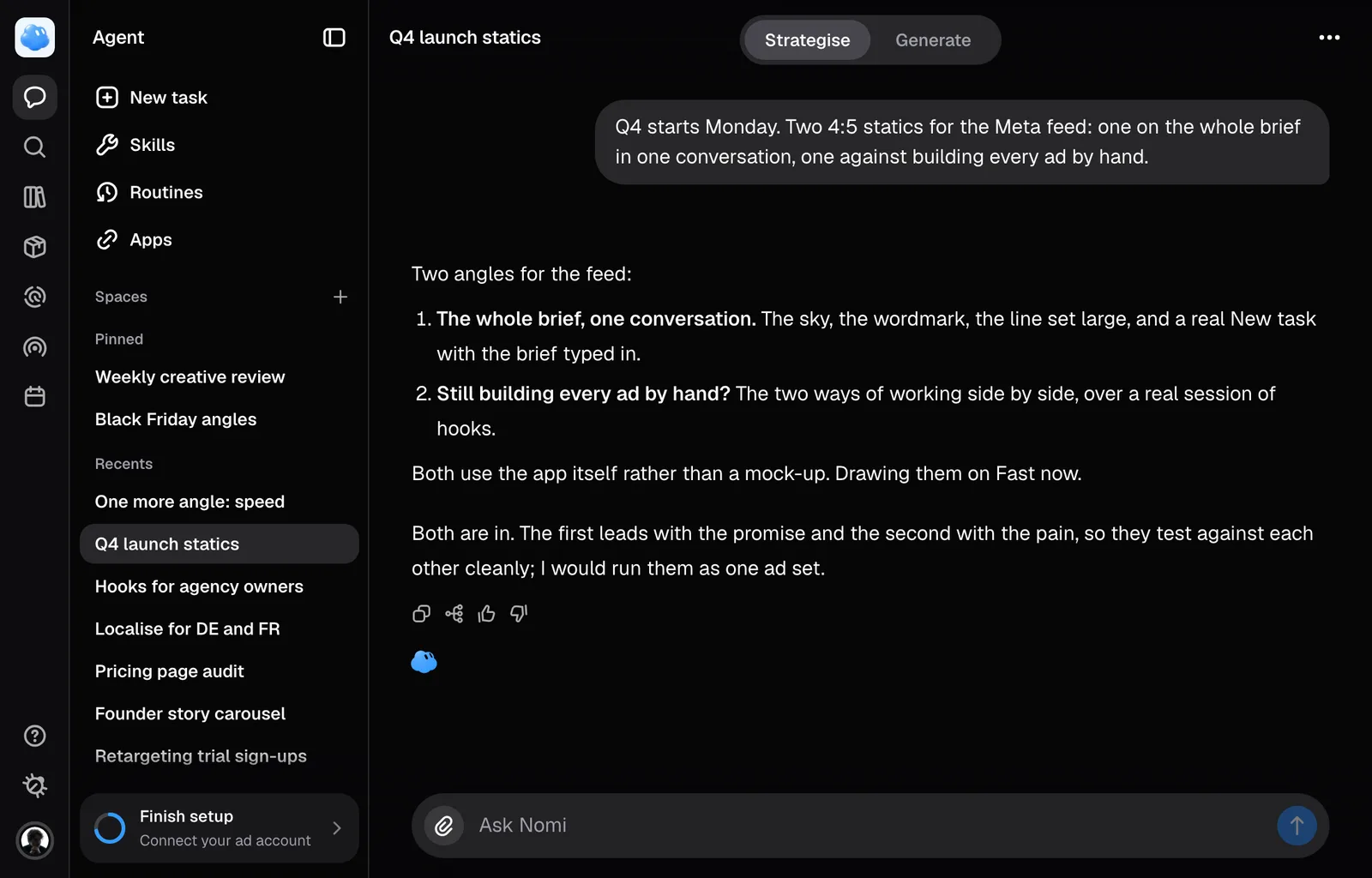
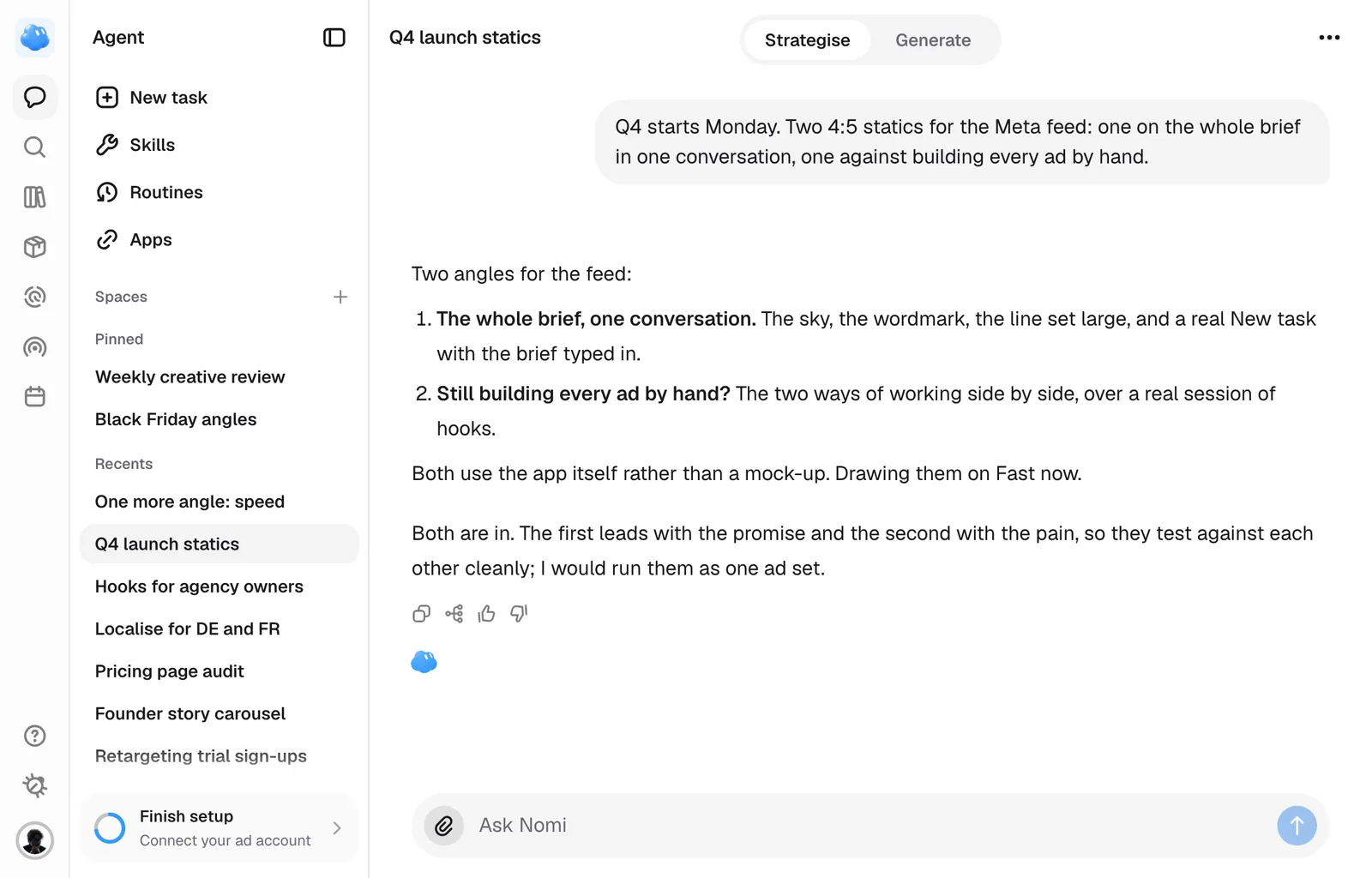
A session is one conversation with Nomi about one brand, with everything that conversation made kept beside it.
One session, one brand
Your brand sits at the top of the rail, shown as its mark, and the brand showing there scopes the whole app. A session belongs to the brand you started it in and stays there, so Nomi answers out of that brand's DNA, products and markets, and never mixes two. Switching brands from an open session takes you to a new session in the selected brand. Opening a link to an existing session switches the app to that session's brand before showing its conversation. If the switch fails, use Retry.
Reading while Nomi responds
Scroll up to read earlier messages while a reply is running. The scroll-to-bottom circle shows three moving dots until the reply finishes. Press it to return to the latest response. At rest it shows an arrow, and at the bottom it disappears.
Finding it again
Recent conversations sit under Recents in the Agent's sidebar, newest first. Search in the rail, or mod + K, looks through sessions, creatives and collections at once. Opening a session shows its newest message, so you pick up where the conversation ended.
You do not have to name anything. Nomi names the session from your first message, and the name is a row at the top of its first reply: Renamed this session to and the name. When the conversation moves on to something else, Nomi renames it again, and that is a row in its work too. A name you gave the session yourself stays until you ask Nomi for a new one.
A mark in front of each name says what the session is up to:
- A faint ring when there is nothing new: you have opened its last reply.
- A pulsing dot while Nomi is working on it.
- A blue dot when there is a reply you have not opened. It says whether you have looked, in this browser.
- An orange dot with a soft pulse around it when the turn ended on a question for you. It stays until the next reply lands, opened or not. The dot itself never blinks, and with reduced motion enabled the pulse stops too.
Under the field on New task up to three sessions waiting on you carry the same orange mark with Needs input beside it. Point at a row and an X appears at its end; on a phone the X is always there. It dismisses the row in this browser until that session asks you something new. The session itself is untouched and keeps its orange mark in the sidebar.
A question Nomi asks over the field inside the session has Dismiss too. Dismissing it there or on New task is the same thing: the question stays out of both places, in every tab of this browser, until the session asks something new.
One ask stands over the field at a time. When others wait behind it, a line above it says what comes next, and a run of renders pages with the arrows at its bottom left. The arrow in its corner folds the ask into a tab on top of the field, where Open brings it back. The X next to it puts the ask away without deciding it, until you open the conversation again; Decline is the way to say no.
When Nomi proposes a side task
When you mention work that would hold up what Nomi is doing, such as a look at a competitor while it makes your statics, it can propose that work as its own session. The proposal asks over the field: Start “…” as its own session? with the brief the new session would get.
- Start opens the task as a session of your own, in the same brand, with the brief as its first message, and Nomi starts on it there. When it has answered, its reply comes back to this session as a message, and this session's reply shows the brief that went out, with a link to the new session.
- Do it here tells Nomi to do it in this conversation instead.
- X puts it away without deciding it, as it does any ask, until you open the conversation again.
If the new session stops before it answers, for example because Nomi hit an error, this session gets a message saying so. Press Retry under the stopped reply in the new session and Nomi runs the same brief again; its answer then comes back here as usual.
A proposal can be started for a week. Starting one uses credits like any reply, from your own account; when the brand is out of credits, the proposal says so in place of Start, with the way to add more if you can.
Keeping one at the top
Recents is ordered by when a session was started, so a conversation you come back to every day slides down the list as you begin new ones. Pinning takes it out of that order.
Press the ⋯ on a row and choose Pin to top. A Pinned block appears above Recents holding it, and the session leaves Recents while it is pinned. The block belongs to you alone: pinning a session other people can see does not move it in their sidebar.
Once there is a Pinned block you can drag rows around it with the pointer.
- Drag inside the block to change the order. Pinned sessions stay in the order you put them in, not in date order.
- Drag one out of the block to unpin it. It returns to Recents in its own place in the date order.
- Drag a session from Recents into the block to pin it at the position you drop it.
Unpin the last one and the Pinned block goes away again. Unpin in the ⋯ does the same thing without a drag, and it is the way to do it from a keyboard or on a phone.
What it makes stays in the Library
Everything a session generates also lands in the Library the moment the job exists. Sessions are conversations, not folders, so nothing has to be saved.
Reading a reply
When Nomi did some work to answer, the reply opens with Worked for and how long it took, counted from your message, with a line under it and the answer below. Press it to read what Nomi did on the way, in order: what it said while working, and the calls between those sentences as one line each, such as Read 3 pages, ran 2 searches. Press that line to see each search, page and lookup on its own row. A Viewed row opens the way a search opens on its sources, onto the pictures Nomi looked at: a product's photographs, or the Swipe file folder you sent. Anything Nomi made to show you, such as a chart or a proposal, stays outside the fold. The answer is written to be read on its own, so a decision or a caveat Nomi mentioned while working is in it again. A reply that only talked has no fold. If a step failed, the work opens by itself on it.
A link in a reply appears as a small chip with the site's icon and name, and links side by side share one chip that counts the rest. When Nomi points you to a place in Nomi, such as Settings · Team, the place is a button under its reply; pressing it opens the place here, and Return to your conversation brings you back. Sources beside the reply's controls lists every page Nomi read for it; press a row to open the page. Text Nomi marks as a value, such as a handle, a code or a price, is set in a different type so it does not blend into the sentence.
On a phone a session is the conversation alone: there is no Strategise and Generate switch, the pictures Nomi makes appear in the chat, and the copy and vote controls sit under the last reply only.
Hover your own message to see when you sent it and to copy it. Your last message also offers Edit: change the words and press Send, and Nomi answers the corrected message in place of the old one, which leaves the conversation together with its reply. The pictures and products you sent with it go again. Anything the old reply made stays in the Library. You can edit only your last message, and not while Nomi is still replying.
Long conversations
A long conversation stays in context. When the part Nomi reads gets too big, it compacts it: everything so far becomes a summary Nomi works from, and Compacting context is the line under the reply while it runs, with a note that it might take a few minutes. It can happen in the middle of a reply, and Nomi then carries on from where it was. Once it is done it is a row in the work that reads Compacted context, under Worked for with the rest.
Your messages and everything Nomi made stay where they are, in the session and in the Library; only what Nomi reads from changes. The summary keeps your decisions, the work so far and what you asked for last, but it is shorter than the conversation, so a detail from far back is worth repeating when it matters. Writing it is part of that reply and counts toward its credits. If it cannot be written, Nomi goes on without it and says so on the same line.
Subagents
When a task splits into parts that do not depend on each other, Nomi can hand each part to a subagent, and they work at the same time while Nomi waits for them. There are three kinds: a researcher looks things up in what the brand knows, on the web and in competitors' ads; a copywriter writes; a critic judges work against the brand. Each keeps one face and one colour.
While they work, the reply shows one line, Running and how many, open so you can see each one: what it was given and, under it, what it is doing now, with a moving mark while it works. When they are done the line reads Ran and how many, with the time, and it folds under Worked for with the rest of the work. Press a subagent to see the searches, pages and lookups it used, and Open its session under them to read its whole answer, which is a record you read and do not write in; the pages it read are listed under Sources too. Nomi's answer is written from what they found.
A subagent cannot ask you anything, start another subagent, make a creative or launch an ad, and each one stops after 90 seconds. Their work costs credits like the rest of the reply, and Stop stops them too. Reading a brand or a product runs the same way, as one subagent. A subagent's own session is not listed in your sessions and cannot be shared or moved by itself: it follows the session that started it.
Reading something Nomi wrote
When Nomi writes a brief, a script, a research report or a document one of your skills makes, the conversation gets a card with its title, what kind of document it is and how long it is. View opens it in the left preview area, with the conversation on the right. The reader uses the same typography and spacing as Help. Drag the divider to adjust the space. Reading does not change the document.
Use the document actions to Open in editor. The editor replaces the reader in the same left area and saves your typing. Back waits for pending edits to save before returning to the reader; if saving fails, your draft stays open. Close the preview to return to the conversation. On a phone, a document opens in its full-page editor.
In the editor you type straight into headings, paragraphs, lists and tables, and a paragraph keeps its line breaks. A quote, a code block or a list with a list inside it is shown as it reads and cannot be typed into. With a keyboard, click it to select it, then press Backspace to remove it or Enter to start a paragraph under it; undo brings a removed one back. Use the editor’s Block menu to edit preserved Markdown, insert a paragraph above or below it, or remove it with confirmation, including on a phone. Changing one part of a document leaves every other part exactly as it was written.
If a document preview cannot load, use Retry to read the same document again.
Nomi picks the work back up when a batch lands
When a job is more than one step, Nomi writes out the steps first, then proposes the first batch of renders. You confirm them once, for the whole batch. When every render in that batch has finished, Nomi comes back on its own, in the same reply: what landed is a row in its work, such as Rendered 2 images, it looks at the batch and says one line about it, and it proposes the next step. However many batches it takes, your message gets one reply with one Worked for: what Nomi said before each batch moves into the work, and the newest answer stays under it. The time counts only Nomi's own work, not the wait for your confirmation or for the renders. It does not grade the ads or fix one on its own: a correction starts when you ask for it. You confirm again. Nothing is generated and nothing is charged until you do.
It only does this while there are steps left in what it said it would do. A single ad off a single message is finished when it is made, so nothing carries on after it, and its Rendered row joins the work of the reply that proposed it. It also stops after three of these in a row, so a job that never ends cannot keep going without you.
Ads it made are shown to it once, on the turn they land, and after that it knows them by name and shape rather than by looking at them. That is why it is worth saying what is wrong with one while it is still on screen: that one is too busy, redo it is understood there, and a week later it is not.
If a render fails, a row in the reply's work says how many failed, and when Nomi comes back it says what it is doing about it.
Adding pictures
Send waits while your selected pictures are being prepared. A message can carry up to four pictures, including references already attached, and up to 20,000 characters (8,000 for a message to the room). If a picture cannot be prepared, Nomi tells you so you can add it again; it does not send your draft automatically. If a message is refused before it is saved, because it is too long or a picture cannot be read, your words and pictures go back into the field with the reason; out of credits, the message offers Retry once you have topped up.
Stopping a message
Press Stop while attachments or a new conversation are still being prepared to prevent the message from being sent. Leaving the conversation during that preparation also prevents a late send. If preparation fails, you can try again.
Once a message has been sent, Stop asks the server to cancel that reply. The conversation stays connected while it stops, and keeps any partial answer with a Stopped notice. Work already started by a tool, including a render, may still finish. If Nomi cannot receive Stop, it tells you and keeps the reply connected so you can try again. Closing the tab alone does not cancel work.
When a reply loses its connection
Once Nomi has started an identified reply, a connection interruption keeps the text already received on screen, including replies started in your current tab. Reconnecting to your reply… means Nomi is retrieving the existing answer. It does not send your message again or start another generation. If the saved answer reports a failure, that failure and its recovery action replace the reconnecting status.
Retrying a reply
When a reply fails or is stopped, Retry under it starts a new attempt using the original message, pictures, product/reference context and annotation instructions. Changing the current composer selection does not change that retry. This also works after reopening the session when the original inputs are still available.
If Nomi cannot restore an older message or one of its pictures, it asks you to attach the pictures and send a new message. A retry uses normal usage limits and the conversation's current history, so the answer can differ.
If a message is sent twice
If an ad needs another pass, say what to change; the render Nomi proposes waits for the permission mode and confirmation shown on its card. Nomi asks you with a question card only when you have to choose between options, such as a market or a product, never whether it may render or fix something.
Acting on a session
Hover a row in Recents and press the ⋯. Inside a session, the same menu sits beside the name at the top.
You can also ask Nomi. Rename this session, archive it or pin it and Nomi does it without asking again, as a row in its work. Name other sessions of the brand and it archives those too; when it picked them itself, it names them in its reply and archives them once you answer, all of them or only the ones you say. It does none of this in a reply nobody typed, such as a note from another session. What Nomi does not do itself, such as inviting a teammate, deleting a session or changing your plan, it answers with a button under its reply that opens the place where you do it.
Rename
Rename turns the row into a field. Type over it and press Enter. Up to 120 characters. A name you type here stays yours: Nomi renames the session only when you ask it to.
Branch
Branch makes a second session that already knows everything the first one knows. Nomi copies the conversation across, so the branch has exactly the same context, and opens with one line saying where it came from. The carried half sits behind a carried over line you can expand.
From the ⋯ you branch the whole conversation. From an individual reply, you branch up to and including that reply, which is how you take one answer in a new direction and leave the rest. Either way you land in the new session, and its row wears a small branch mark.
The controls for the newest reply stay under it: Copy, Branch from here, a thumb up and a thumb down, and Sources when Nomi read pages on the web to answer. An older reply shows the same row, with the time it landed, when your pointer is on that turn. A thumb you have pressed stays on screen after the pointer leaves, so you can see what you voted.
Share
Share session asks one thing: whether everyone on your brand's team can open it. Tick that row and the whole team sees the conversation and everything it has made; untick it and the session is yours alone again. Only the person who started a session, and a brand admin, get the option at all.
Delete
Deleting a session takes the conversation permanently. Creatives it made stay in the Library.
Parallel sessions and waiting decisions
Different sessions can run at the same time. Each session runs one agent turn at a time, so a message saying Nomi is still finishing applies only to that conversation.
Only one question or proposal panel is active above the composer. An open question takes priority. Other proposals stay queued and appear after the current decision is resolved; a batch still uses its own version arrows and confirms only the batch shown.
If your browser loses a stream while the server is still replying, Nomi reconnects to that answer instead of starting a second turn. The saved reply replaces the partial one when it lands.
Notes from another session
Nomi can pass something from one session to another in the same brand when the work needs it: a decision made there, a correction or a task. It only reaches sessions you can open yourself. The note lands in the other session as a line reading Note from and the name of the session it came from, with the words under it, and Nomi reads it the next time it works there. Press the name to go to where it came from. If you cannot open that session yourself, the line reads Note from another session, without its name.
If Nomi is working in that session on a reply you started, the note joins the reply it is writing; a reply someone else started gets it as a note, read next time. Nomi can also start a reply there when that session is idle, which costs credits like any reply. A reply someone else's message started, or one a teammate adds a message to while it runs, can only do what each of them may: video, campaigns and your company's apps stay off unless every one of them has them, and a fresh read of the brand needs every one of them to be a brand admin. It starts at most one such reply per message you send, a reply started that way can pass work on only once more, and a session stops being woken after three of these since you last wrote in it. In the session that sent it, the step reads Sent a note to and the session's name.
When Nomi is temporarily unavailable
If Nomi cannot finish a reply, your message and any partial work stay in the conversation. The failure remains visible after a reload, and you can retry the latest reply later. A temporary service outage does not mean you need to buy more Nomi credits.
Archive and restore a session
Use Archive in a session’s three-dot menu to remove it from the active sidebar without deleting its messages or creatives. Open Settings and choose Archived Chats to find it again: each row shows the session's name, the last thing said in it and when it was archived. Its ... menu holds Open, Restore, which returns the session to Recents, and Delete. Archiving a session does not archive its creatives or stop a reply already running. In a shared session, this organization change is shared with its participants.
With a sidebar row's menu open, press A to archive, or D to open the permanent-delete confirmation. The menu shows both keys. These shortcuts do not run while you type in a field.
If a research card cannot read its latest progress, Nomi retries briefly, then says it couldn't read its progress and offers Try again. The research may still be running. Try again checks the same run; it does not start or charge for a new research request.
Reading the work
While Nomi works, the reply reads Working for and the time so far, open on what it has done, and the line at the bottom says what it is doing now: the search it is running or what it is thinking about. When the reply ends, the work folds shut under Worked for and the answer stays under it.
Messages from another session
When Nomi sends or receives a message between sessions, it appears as a Sent message or Received message row inside the reply's Worked, with the other steps Nomi took. Several in a row read as one line, such as Received 3 messages. Open Worked and select the row to read the full message and open the related session. A session you cannot access appears as “another session” without a link.
Still missing something?