Brand and products
Adding a product
How a product gets into Nomi, and what it holds once it is there.
Last updated 24 October 2026

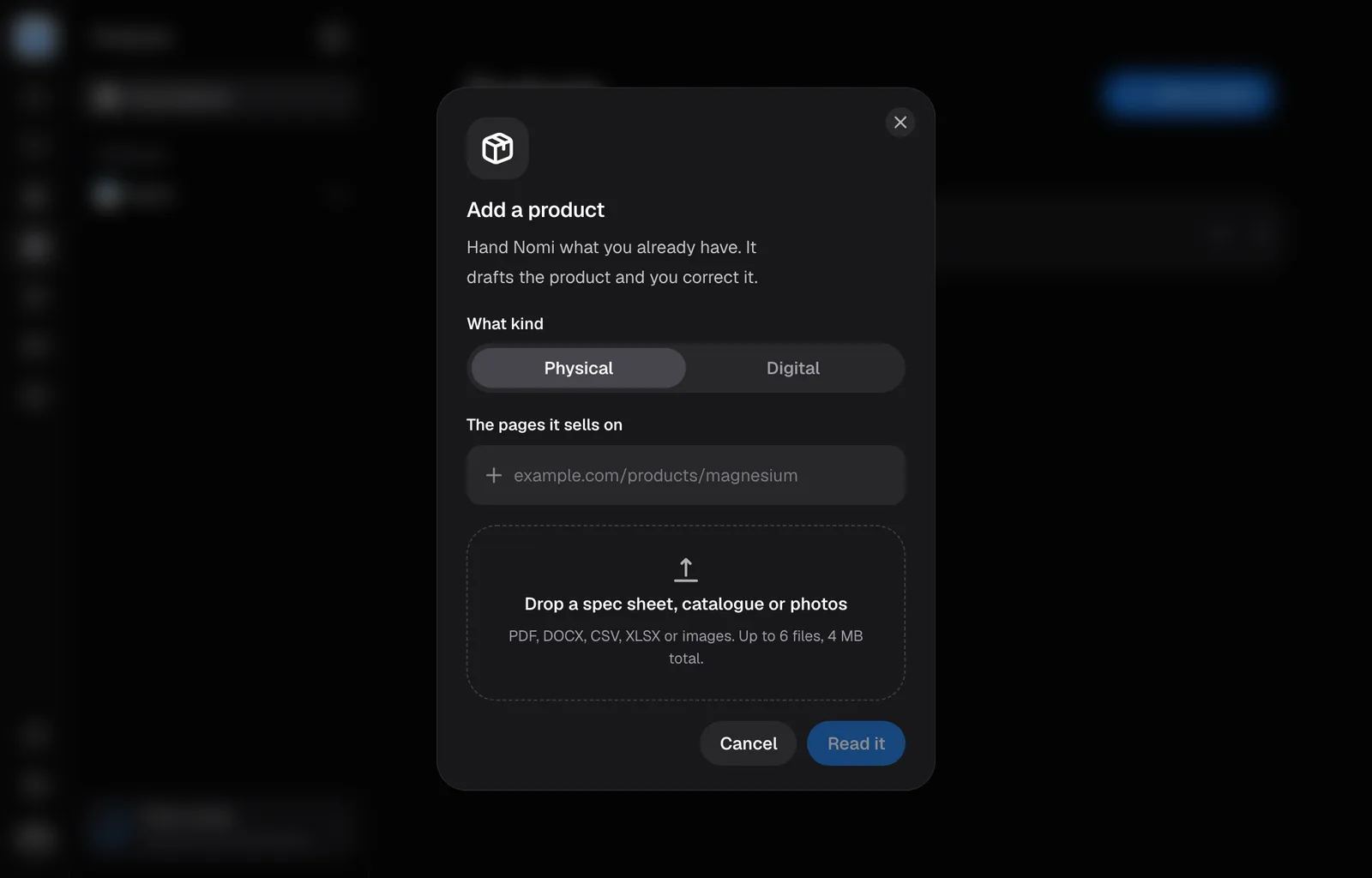
A product is what an ad is actually selling: what it does, what it costs where you sell it, what you may claim about it, and the pictures Nomi may draw with. The first one usually arrives while Nomi reads your site during setup. Every one after that comes from a page you hand it.
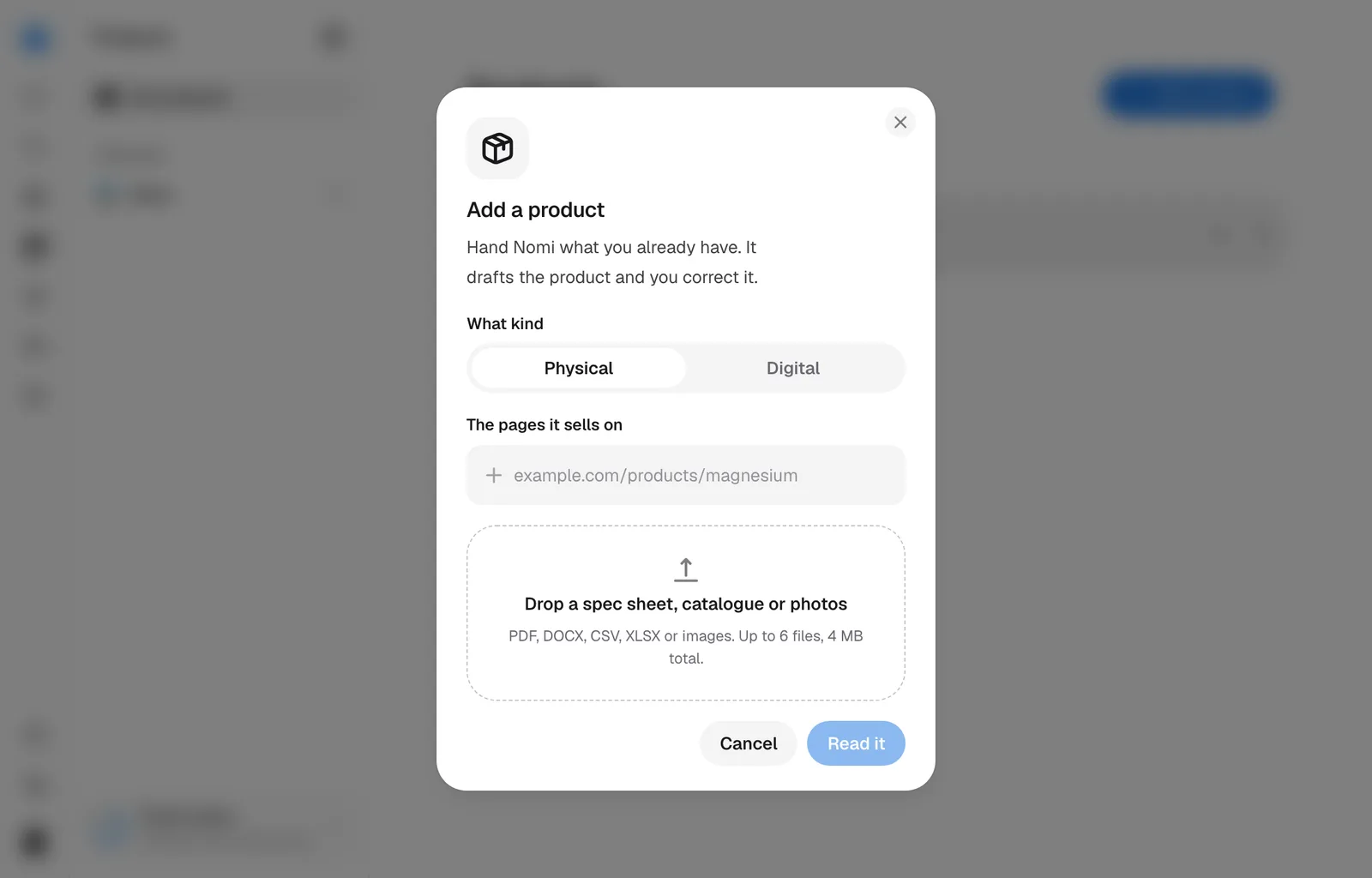
The Add product button on the Products page opens a panel that asks for the pages a product sells on. Read it arms as soon as you paste one and reads the product straight off the page, without opening a conversation. Choose Physical or Digital before reading. Nomi uses that choice when creating the product. You can also attach supported documents or product pictures, with or without links. Nomi reads those sources and saves the assigned product pictures.
Adding one
Give Nomi the page it sells on
In a session, paste the address of the product's own page or its marketplace listing and ask for the product to be added. Those two kinds of page are the only ones allowed to define a product: an advertorial is somebody else's account of what you sell, so Nomi takes who buys it and why from it instead, as personas, and tells you so.
Let it read the market off the page
The currency, the domain and the language say which country you are selling into, so the product and its first market arrive together. Nomi says which market it read the page as, and you correct it there if it guessed wrong.
Let it take the product's photographs
Nomi keeps up to four of the photographs the page lists for the product, in the store's own order and at least 400 pixels on their shorter side. A page that lists none gives the picture it shares, held to the same size. Reading the page again adds the ones the product is missing, up to four, and replaces nothing. Nomi names each picture it takes, as it does one you upload.
Correct the draft
Open Products in the rail to find the new product in its list and sidebar. What Nomi wrote is filled in and marked From your site or From your files, and you correct it by typing over it.
Hand Nomi the same product twice and it fills in the one that exists rather than making a second. Matching is on the name, ignoring capitals.
What a product holds
Products opens as a list. Open a product row to see its picture, its name and what it does in a sentence underneath; press that sentence to edit it. The sidebar keeps the product catalogue, with General and Angles under All markets and under each individual market. At the foot of the product's page, What Nomi keeps lists what you told Nomi about this product and what it learned from its ads; press one to read or correct it in Agent Memory, or choose Forget from its ⋯. Every other field is a row in one of the blocks below: press a row to open its field under it, and press it again to close it. Changes save when you leave the field. A failed save keeps your text and shows the error so you can try again.
- A kind: Physical or Digital. It decides what a picture can be: packaging, angles and variants for one, screens, flows and empty states for the other.
- Product images: PNG, JPEG or WebP, up to 10 MB. Use a clear photograph of the real product. Nomi identifies what the picture shows and saves a suggested role and name; you can correct those details by opening the picture.
- Essentials: the name, and the price, the offer and the claims you may make, which belong to one market and never cross a border. A market's page adds its own name for the product.
- Where the ads point: a product page, an advertorial, a quiz or a listicle. Each is its own row, so a product can sell on several. The pencil on a row changes its address, kind or market, and the bin removes it; Add landing is the last row.
- Proof: a customer count, reviews you have permission to quote, press you may name, experts on record and certifications. Nomi quotes these word for word, checks before quoting anything unchanged for more than 90 days, and puts no other proof on an ad. A marketplace listing cannot fill them.
- More detail: why the problem keeps happening, why this works, what's in it, the format, its real size, the wording never allowed anywhere and the lines every ad for the product must carry such as a regulatory disclaimer. An ad that leaves out a line it must carry, or uses a claim you may not make, is refused before it is made.
- Angles: under All markets or an individual market in the Products sidebar, one for each buyer and the one reason they buy, up to twelve; a row shows that reason and opens on who they are. An angle can narrow somebody on the brand's persona list. Every time you add a product, Nomi also reads who buys it, from its reviews, its listings and threads about the problem it solves, and files those buyers on the product, stamping each one with where it came from. Not tried yet comes first, the angles no ad has used, then Tried, most ads first, with how many ads each has and how many you liked and disliked. The brand's buyers lists brand personas this product's ads were made for.
- From the product page: after Proof on General, the arguments the product page made, saved before 20 October 2026. Nomi no longer drafts or reads them; why someone buys lives on each angle.
To delete a product, open it and press Delete product under Danger zone at the foot of its page, or press ⋯ on its row in the Products list and choose Delete product. Either way it asks first, and it takes the product's pictures, landing pages, angles, the arguments from its page and every market's answers with it.
Opening a source picture shows its saved role, name and market. Remove asks before deleting the picture; Cancel keeps it. After a successful removal, the product updates even if cleaning up the stored file encounters a problem. If saving fails, your entered details stay available for retry. Switching to another picture loads that picture's details.
When you upload a new picture, Nomi identifies what it shows and saves its role and a short name. You can open the picture to correct those details. If Nomi cannot identify it, the picture stays saved and usable; you can leave it as it is, edit its details or upload the same file again to retry. Labels are optional. Fetching a picture from the product's landing page uses the same flow.
Reading a picture uploaded directly on the product page uses credits. If that read is unavailable or refused, saving the picture still works. Pictures supplied during a product intake are described in the same read as the product, without a second picture read. Each picture a read takes from the product's page gets its own picture read, which uses credits the same way.
Changing any of it needs an admin role. Everyone else sees the page with its controls visible and disabled. If your access changes or the item disappears while the page is open, saving or removing it shows an error. A refused removal does not delete its source files.
Read product files
You can add up to six PDF, DOCX, CSV, XLSX, TXT, Markdown, PNG, JPG or WebP files, totaling up to 4 MB. Files work on their own or alongside up to three links. Nomi reads the files, drafts supported facts and saves photographs to the product they describe. It leaves the market unset when the sources do not establish one.
If a file cannot be read or saved, the dialog keeps your input so you can replace the file and try again. Some product facts may already be saved after a partial read. Repeating the same files reuses their saved records.
Adding a product in a conversation
Give Nomi the product URL and ask it to add the product. The conversation uses the same specialist reader as Add product, including market facts and source photographs. You can include the product pictures attached to that message.
The card in the conversation shows the product's photo, its name and the site it was read from. Review expands the card in the conversation: a large product picture first, then the product and market tabs. Each saved field opens under its row, as on the Products page. Close folds the fields back into the card. Confirm records the version on screen; an edit or a later read needs another confirmation. Saved drafts are visible before confirmation.
Nomi files a fact only from a page it actually read, and a number only when that page shows it. If a page will not open for Nomi, nothing is filled in from it. Nomi may read the product from another page that sells it, such as the brand's store in another country, and says which page it used; if none opens, it says the page could not be read and asks for another link, a photo or a few words about the product. If a read is stopped or fails partway through, the card says some details are missing and keeps any drafts already saved. View them before retrying. Only a brand admin can add, edit or confirm products; people who can read the conversation can view its card. Picture names use hyphens between words and omit image file extensions.
Still missing something?