Get started
Your first session
What a session is, and how a first question turns into creatives.
Last updated 24 October 2026

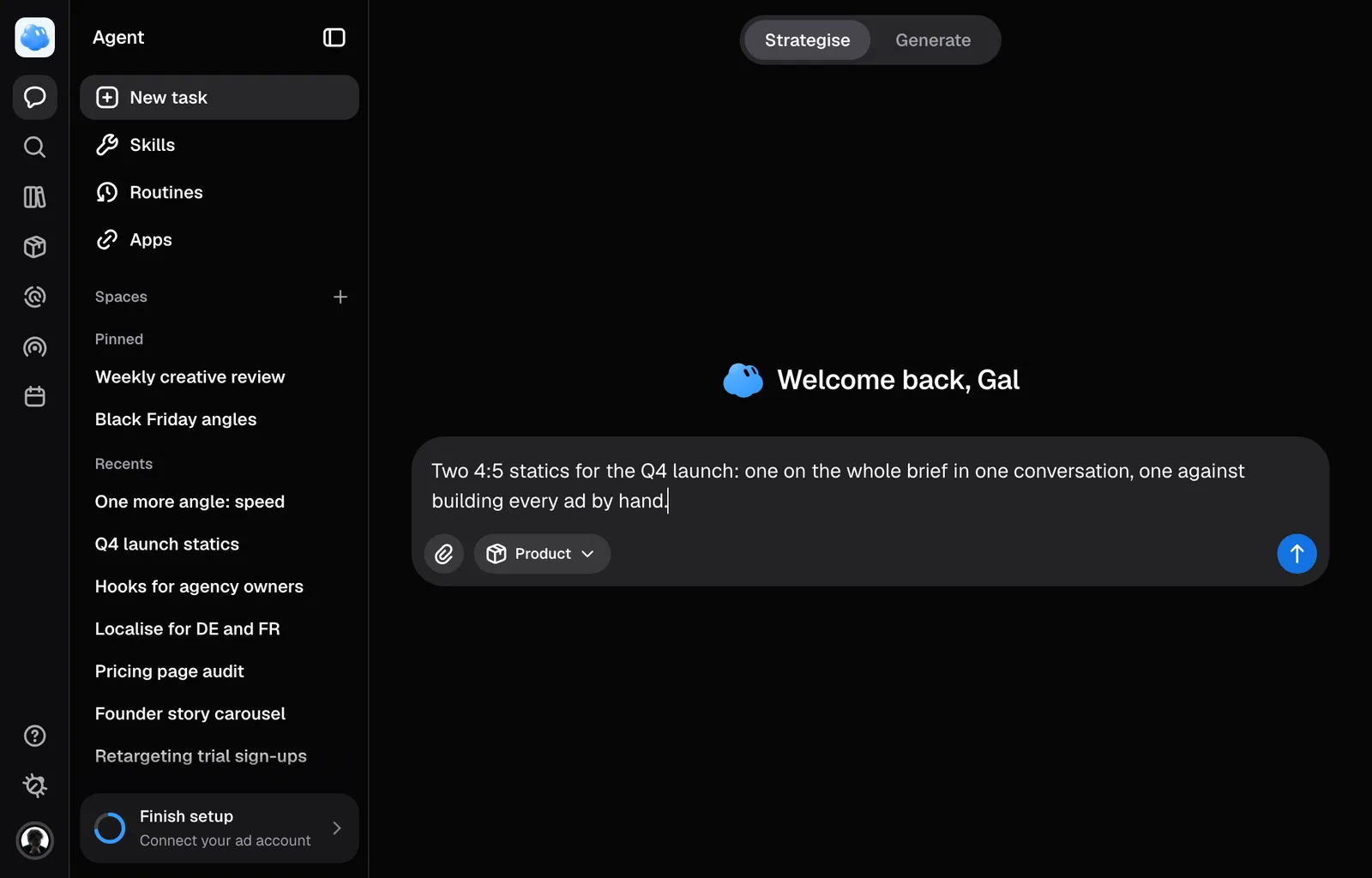
A session is one conversation with Nomi, kept together with everything it makes. Here is what the first one feels like: you ask, Nomi works the plan out with you, and the plan becomes creatives on the canvas beside the chat.
Starting one
Pick Agent in the rail, then press New task at the top of its sidebar. Under it, Recents lists the sessions you have touched lately.
The empty screen asks what you are working on, with Nomi over the question and a one-line field in the middle. A few examples stand centred under the field: Make a static ad, Draft fresh angles, Competitor ads and, where the screen is wide enough, Plan a campaign. Pressing one puts its full sentence in the field; you still send it yourself, and can change it first. Once you have sessions, your three latest stand under the examples as cards, a session waiting on your answer first: each shows how long ago it moved, Needs input or New reply for a reply you have not opened, its name, Nomi's last reply and the newest ad it made.
If creating the session fails, retry from the conversation.
Strategise and Generate
A session starts in Strategise; at the top of the session sits a two-way toggle. Strategise is the conversation at full width. Generate splits the screen: the creative grid takes the left, the conversation shrinks into a rail on the right, and the divider between them can be dragged. It is one conversation either way.
Nomi writes the prompt
Every message goes to Nomi, which reads the brief, asks what it needs and works it out with you. You do not write the prompt for the picture: Nomi does. Before anything is drawn it puts up a card carrying the idea, with the shape and the engine: edit the sentence if you want to, then Confirm or Decline. Where video is switched on, ask for a video the same way, and Nomi writes the script and puts a card up before anything renders.
What goes in a message
Select a product
Press the paperclip and pick Product. It rides along as context for the whole session, and it is the only place a product is picked. Once the session has started, the field is one line and Product is still the paperclip's row.
Add a reference or a file
The paperclip beside the field holds Select a reference, for anything in your Library or saved from Radar, and Upload. Dragging a file onto the composer works, as does pasting one. Pictures and documents both go: a PDF, a Word file, an Excel sheet, CSV, plain text or Markdown is read in full with the message.
Point at one in your sentence
Type @ to name something already on the message: @img1, or whatever you renamed it to. @nomi addresses the agent. It never offers a product.
Send it
Enter sends, Shift + Enter starts a new line. While a turn runs, Send becomes Stop, and Enter queues your message for after the reply. Stop saves the partial reply and prevents new tool work in that turn. Work already sent to a provider can still finish and incur usage; its credit entry may appear shortly after the reply stops.
While Nomi works, a line under your message names what it is doing now; once the reply lands, everything it did folds under Worked.
Shortcuts
Still missing something?