Account
Profile and preferences
Your name and picture, the theme and accent, and how Nomi writes to you.
Last updated 24 October 2026

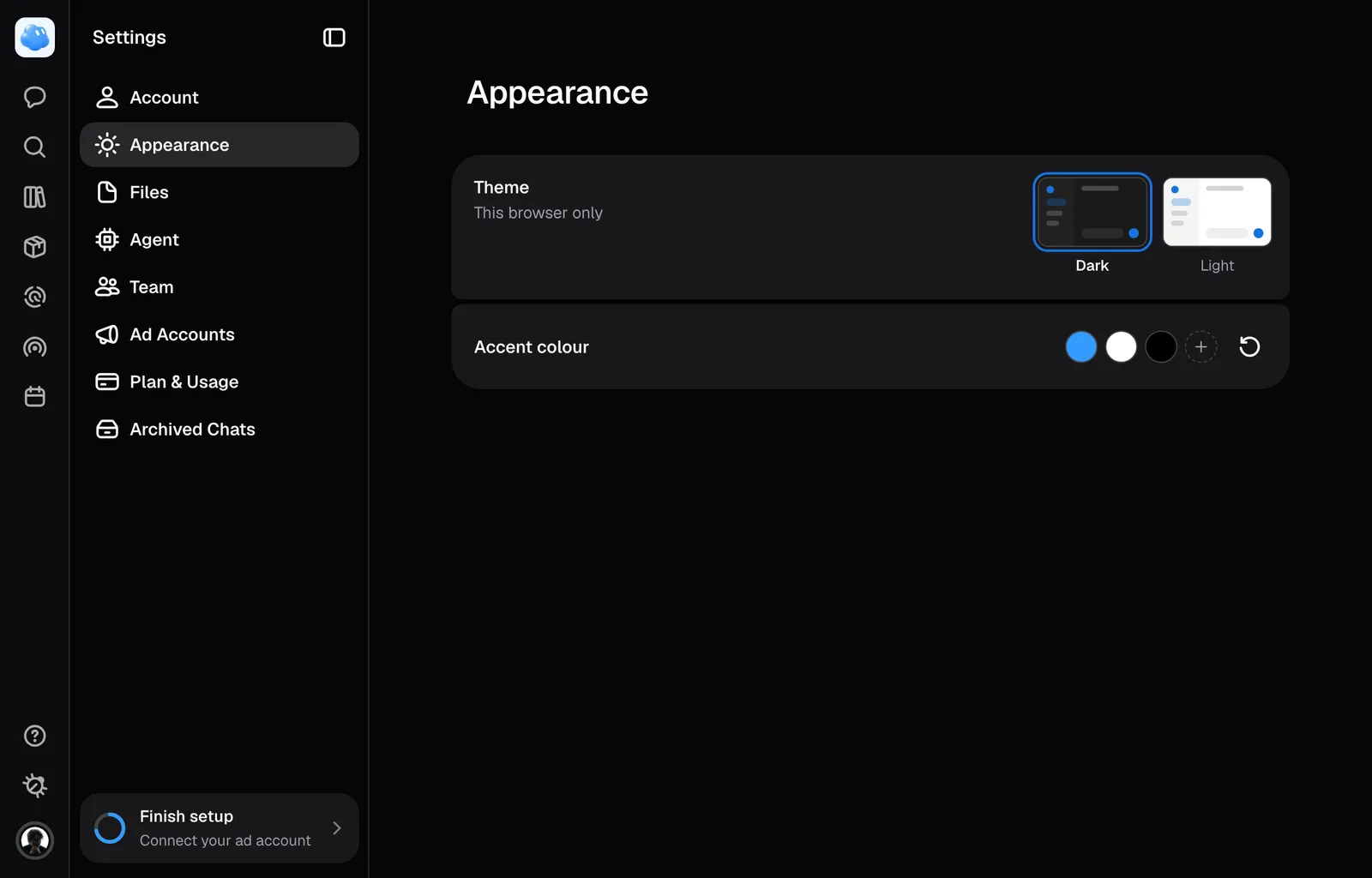
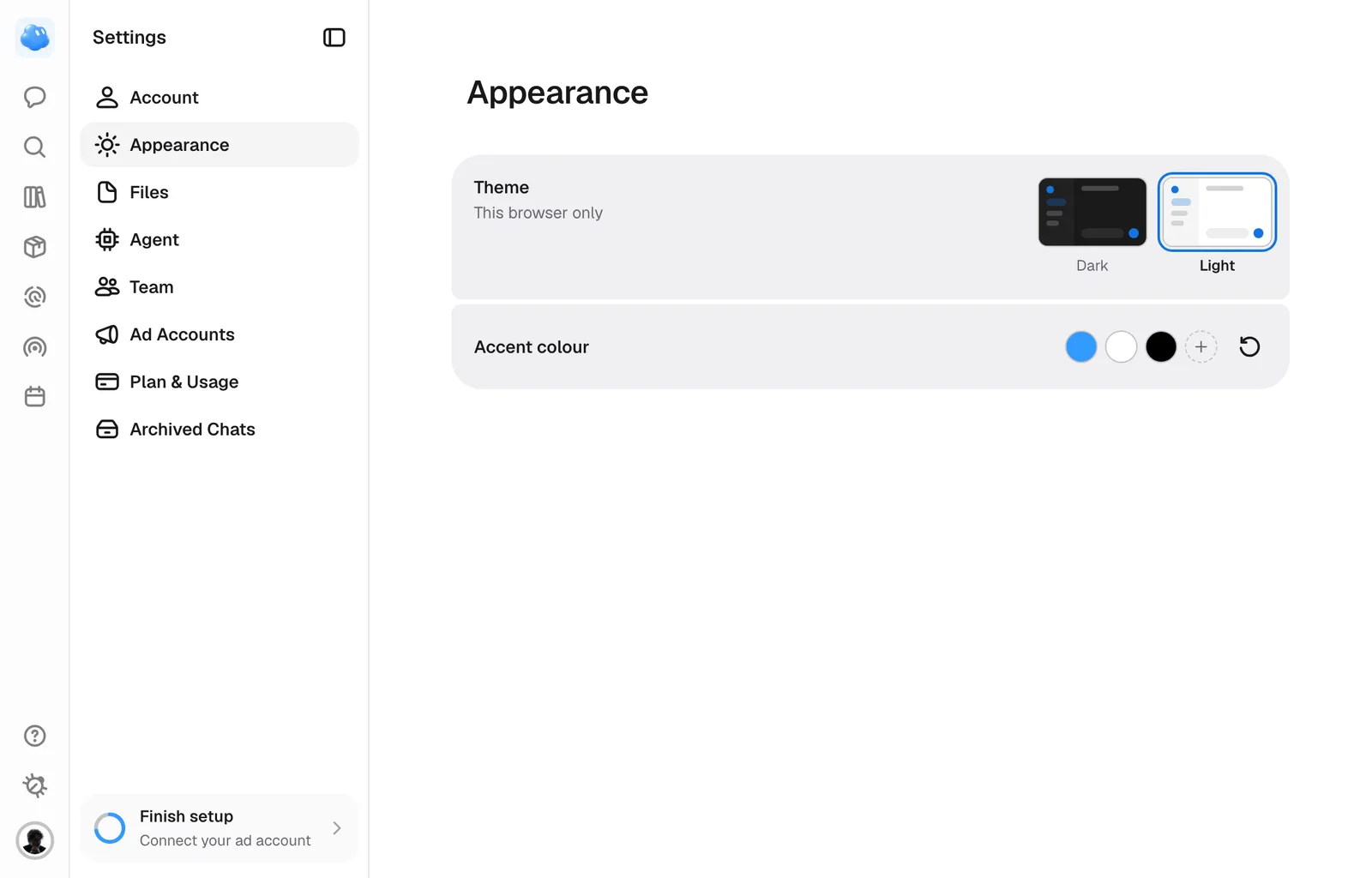
Settings is a page. Open it from the account menu, which is your avatar at the foot of the rail. Its sidebar lists the pages: Account, Appearance, Files, Agent, Team, Ad Accounts, Plan & Usage and Archived Chats. Ad Accounts appears only on accounts that have it switched on. Skills, Routines and Apps are the Agent's own pages, under New task in its sidebar. Each page has its title above its content. Four of them are about you: your account, how the app looks, how Nomi talks to you, and what your downloads are called. None of them has a Save button. Picking from a list is the commit, and a field saves when you click away.
Who you are
Account shows your picture, your name and the address you signed in with.
- Your picture. Click the avatar and choose Upload a picture: a PNG, JPG, WebP or GIF, up to 5 MB. Every account gets a generated avatar at sign-up, and Remove brings that same one back rather than dealing a new one.
- Your name. Type it and click away.
- Your password. Email me a reset link sends one to the address on the account. There is nothing to fill in, since you are already signed in. If the new password is refused, the form tells you whether to choose a stronger or different password, wait before trying again, or request a fresh link.
- Analytics cookies. The switch holds your answer to the cookie question in the corner. On, this browser is remembered between visits; off, visits are counted without a cookie. The answer covers nomigrowth.com too. The switch only appears while Nomi measures visits.
Delete account is at the foot of the same page, under Danger zone. What it takes and what survives it is on Your data, below.
How the app looks
Theme, on Appearance, is picked by its picture, Dark or Light, and it is the one setting that belongs to the browser rather than to you: the same account can be dark on a laptop and light on a desktop. A browser that has not picked opens in Light. The same choice is a toggle in the account menu.
Accent colour recolours Nomi's mascot and every primary button, Send included. The discs offered first are your brand's own colours, the outlined one opens a picker for anything else, and the arrow beside them, Reset to default, puts the app's blue back.
How Nomi talks to you
Agent holds six dials and a note.
- Permissions: Ask for permission proposes everything and waits, Auto works on its own and stops before it spends, and Bypass permissions renders what you just asked for in that tab without asking; a picture Nomi proposes on its own still waits for your click. It is kept in this browser, and while it is on Bypass permissions an amber switch under the message field says so.
- Confirm before spending: the ceiling above which Nomi stops and asks before a paid action. The app enforces it, not the agent.
- Tone: Direct, Balanced or Warm.
- Initiative: answers what you ask, suggests what it would do next, or offers a plan unasked.
- Shows its thinking: just the answer, the turns that mattered, or everything as it goes.
- Writes to you in: English, German, French, Spanish, Italian, Dutch, Polish or Slovenian. This is the conversation, not the language your ads are written in.
- Anything else about how you want it to work is a free note, up to 2,000 characters, for the standing rules a dial has no room for.
A change reaches the next message you send, in a running conversation as well as a new one.
These settings are yours rather than the workspace's, and a session runs on the settings of whoever started it. A colleague's shared session answers in their language and their tone.
Asking Nomi
You can ask Nomi to change your language, its tone, how much it does on its own and how much reasoning it shows; the change applies from your next session. Your note to Nomi and the amount above which it asks before spending stay yours, here. Nomi can also mark your notifications read.
What your downloads are called
Files holds Download file names, which decides the filename a download hands you. Type the pattern, or click the chips to add a piece: the brand, the product, the market, the angle, the title, the aspect ratio or the date. The line under the field previews a real filename. A pattern needs at least one piece, and a piece with nothing to say is dropped along with the dash beside it.
The creative's own id is always on the end and cannot be removed. It is what links a file uploaded to Meta back to the creative that made it, and a downloaded file can never be renamed.
Requesting a password reset
Use Forgot password on the sign-in page. After requesting a link, Use a different address returns to the form. A later request can show its own confirmation or error. Security-check, rate-limit and service failures stay on the form so you can retry; the confirmation never reveals whether an address has an account.
Still missing something?